MT Notify · for VUTLAN
Request  LINE OA / Telegram alert setup For VUTLAN
VUTLAN devices only: fill in your details to get a Username and Password, then put the API string into VUTLAN's Web SMS. Alert messages go straight to the LINE OA or Telegram group you define.
LINE OA or TelegramLINE) or Bot Token and Chat ID (Telegram)LINE / Telegram immediatelyProcessing, please wait
We are creating your account and emailing you a summary. Please do not close or refresh this page.
- Checking your details
- Creating account and password
- Sending the summary email
Settings LINE OA in VUTLAN
After you receive your Username and Password, set up the System Tree menu in VUTLAN with these steps (works on every model, e.g. VT335G, VT825G, VT855G)
LINE OA)This Message text is only a suggested example. You can customize it in the Message text field of the VUTLAN web interface (for example, add a site name, reorder lines or remove lines you do not need). Variables: %5 = sensor name, %6 = state, %7 = measured value, %3 = alert time.
Enter $LOGIN$ $PASSWORD$ $MESSAGE$ exactly as written; do not substitute values. VUTLAN fills them in itself.
- Go to the System tree menu on the left, then press “+” At the top right, choose “Web SMS” (Send SMS via Web Service)
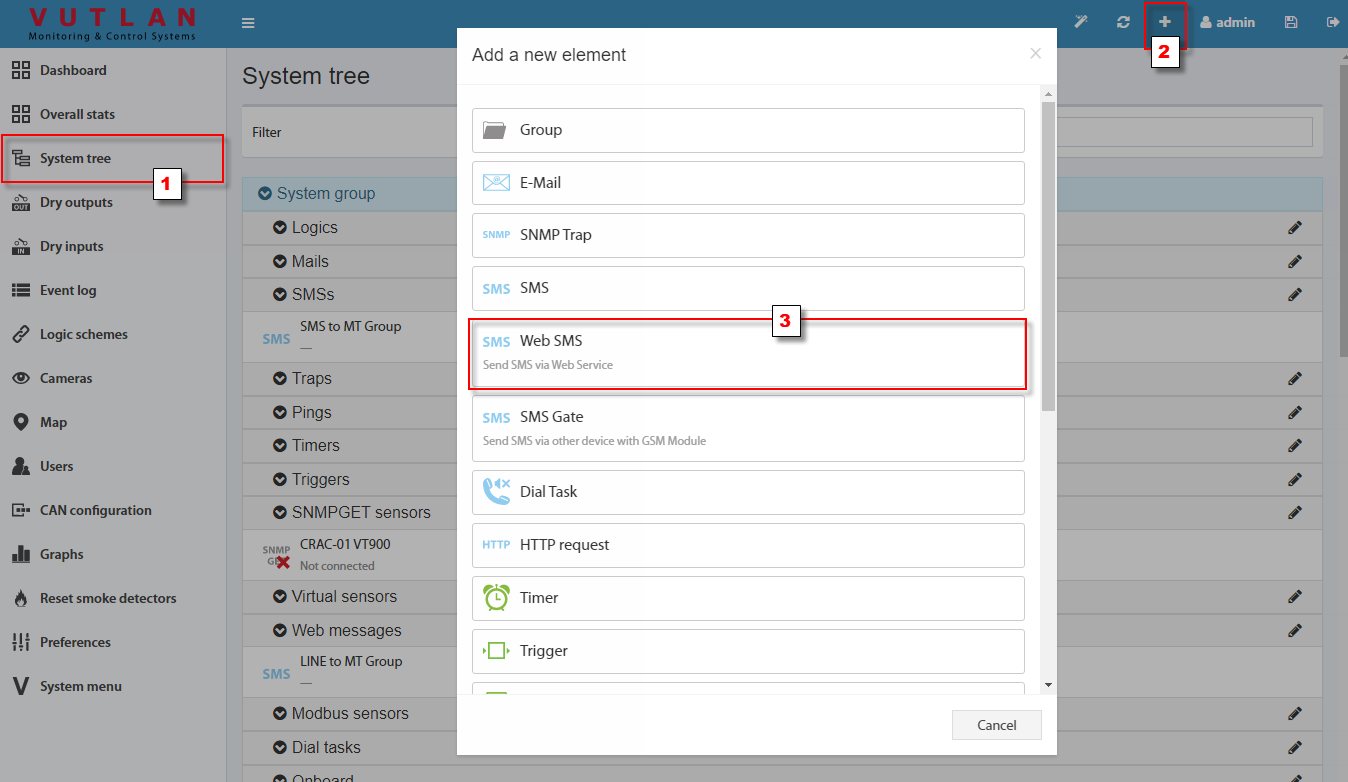
- Name it This alert, e.g. Line to Monitoring Tech Group
- Channel Message text Enter the text above (Sensor name / Current State / Current Value / Alert Time)
- in Web Service settings Enter
- Login: Username obtained from registration
- Password: Password obtained from registration
- Line break: Unix (LF)
- API string: link LINE OA Top
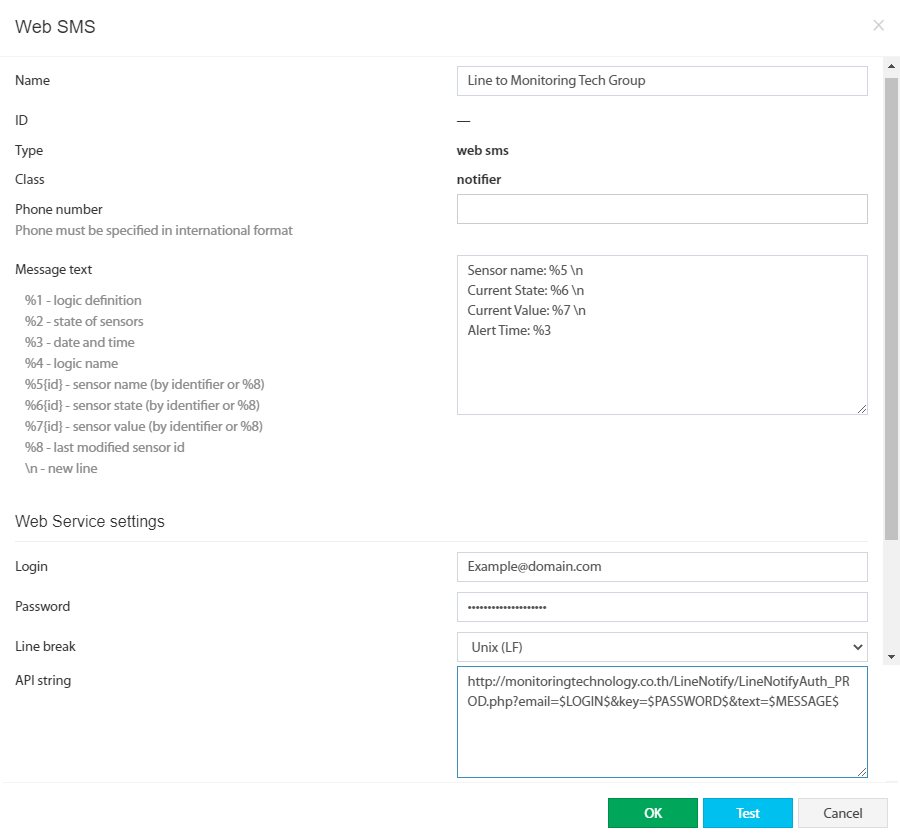
The sample image is a VUTLAN screen. Use your own Login, Password and API string shown above.
- Press the button Test then check the test message in LINE your
- Press OK to save, then press the disk (Save) icon at the top right again
- Use this alert as Alert method in the Logic/Trigger that should send the message
Caution: Alert delivery LINE OA The VUTLAN device's IP must be able to reach the Internet (check Gateway, DNS and Firewall)
LINE OA is limited to 300 messages per month per package; suited to important events, not continuous value reporting
Settings Telegram in VUTLAN
After you receive your Username and Password, set up the System Tree menu in VUTLAN with these steps (works on every model, e.g. VT335G, VT825G, VT855G)
This Message text is only a suggested example. You can customize it in the Message text field of the VUTLAN web interface (for example, add a site name, reorder lines or remove lines you do not need). Variables: %5 = sensor name, %6 = state, %7 = measured value, %3 = alert time.
Enter $LOGIN$ $PASSWORD$ $MESSAGE$ exactly as written; do not substitute values. VUTLAN fills them in itself.
- Go to the System tree menu on the left, then press “+” At the top right, choose “Web SMS” (Send SMS via Web Service)
- Name it This alert, e.g. Telegram to Monitoring Tech Group
- Channel Message text Enter the text above (Sensor name / Current State / Current Value / Alert Time)
- in Web Service settings Enter
- Login: Username obtained from registration
- Password: Password obtained from registration
- Line break: Unix (LF)
- API string: link Telegram Top
The sample image is a VUTLAN screen. Use your own Login, Password and API string shown above.
- Press the button Test then check the test message in the group Telegram your
- Press OK to save, then press the disk (Save) icon at the top right again
- Use this alert as Alert method in the Logic/Trigger that should send the message
Caution: Alert delivery Telegram The VUTLAN device's IP must be able to reach the Internet (check Gateway, DNS and Firewall)
Some VUTLAN models already have built-in Telegram alerts. Use this Web SMS method when you want to send through the MT Notify service, which sets the recipients centrally.